SFTP Access
SFTP is a secure and convenient way to access, browse and download large Experiments, Datasets and Files in MyTardis. Importantly, the SFTP interface to MyTardis is read only i.e., it is a mechanism to access data in MyTardis but does not allow adding data to MyTardis.
Prerequisites for accessing data via SFTP
In order to access data on MyTardis via SFTP, you will first need to install an SFTP client. There are many free and commercial SFTP clients for you to choose from; however, we recommend FileZilla (All platforms) for the majority of users. The instructions here will focus on FileZilla (All platforms).
Managing SSH keys in MyTardis
MyTardis uses SSH key pairs to authenticate you when connecting via SFTP. Using SSH keys to authenticate is more secure and private than password-based authentication. SSH keys generally come in a pair: (1) a private part and (2) a public part. Key-based authentication typically requires you to share your public key with the service, again which you use your private key to authenticate. Never share your private key!
Generating an SSH key on Windows 10/11
Press
Windows Key, typecmdand pressEnterto open Command Prompt
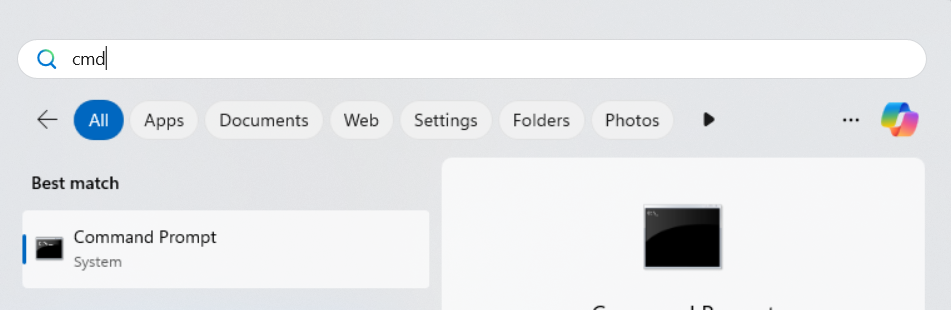
Run the following command:
ssh-keygen -t rsa

Follow the prompts:
Specify where to save the key or press
Enterto accept the default location (e.g.C:\Users\username\.ssh\id_rsa).For extra security, a passphrase can be entered. This is optional and can be skipped by pressing
Enter.
The following two files will be generated in location specified above:
id_rsa(This is the private key and it must never be shared)is_rsa.pub(This is the public key that can be shared with servers you want to connect to)
Adding a public SSH key to MyTardis
To register a public key in MyTardis:
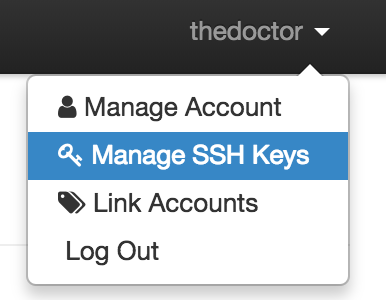
Navigate to the SSH key management page using the Manage SSH Keys link in the user menu.
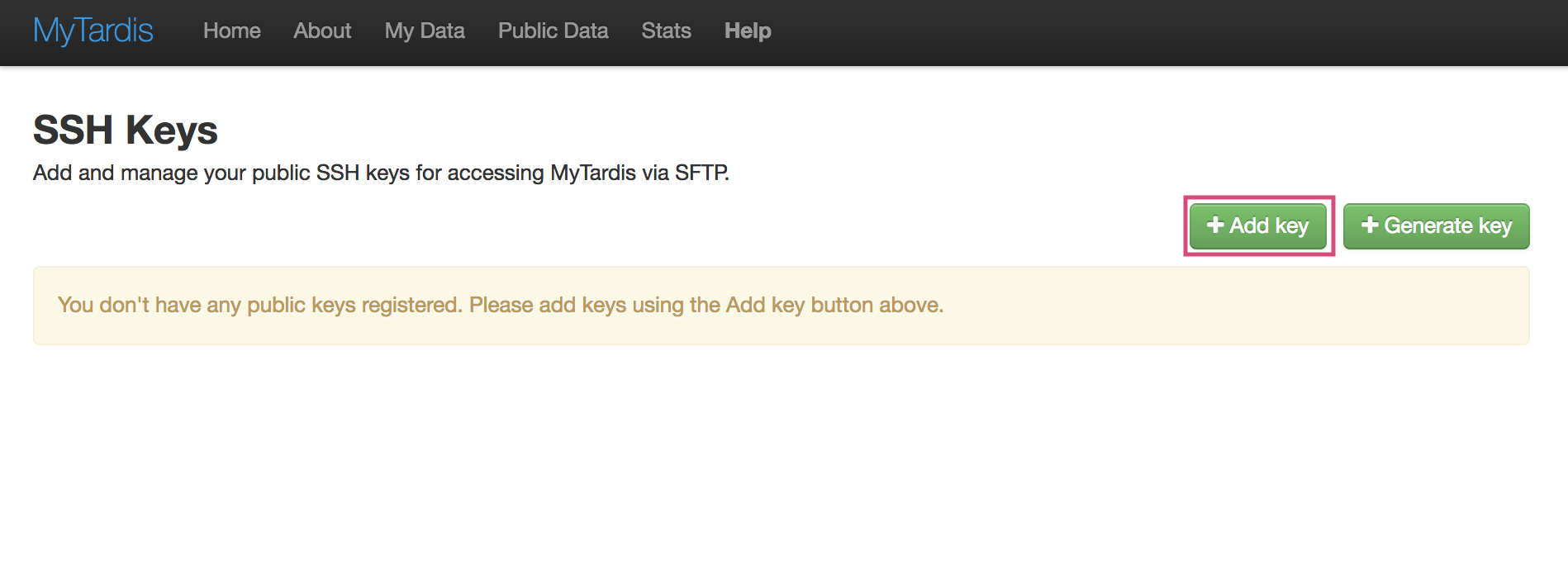
Click the + Add Key button:
Fill in the Add SSH Keys form by entering a name for the key and the public key text. The public key text should be in OpenSSH format e.g., ssh-rsa AAAAB3NzaC1yc2EAAAADAQABAAABAQDYZYnXpTP6e/BsQw+….
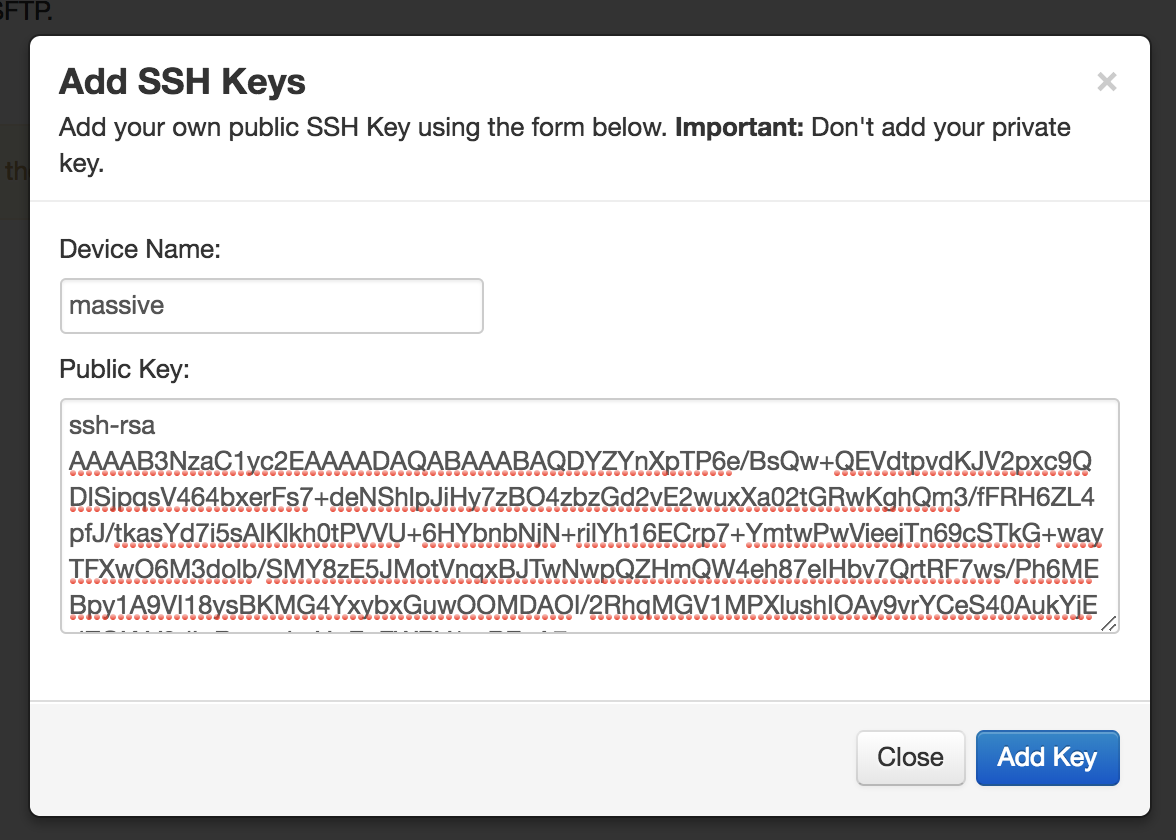
Click the Add Key button.
If successful you should get a new entry in the SSH keys table.
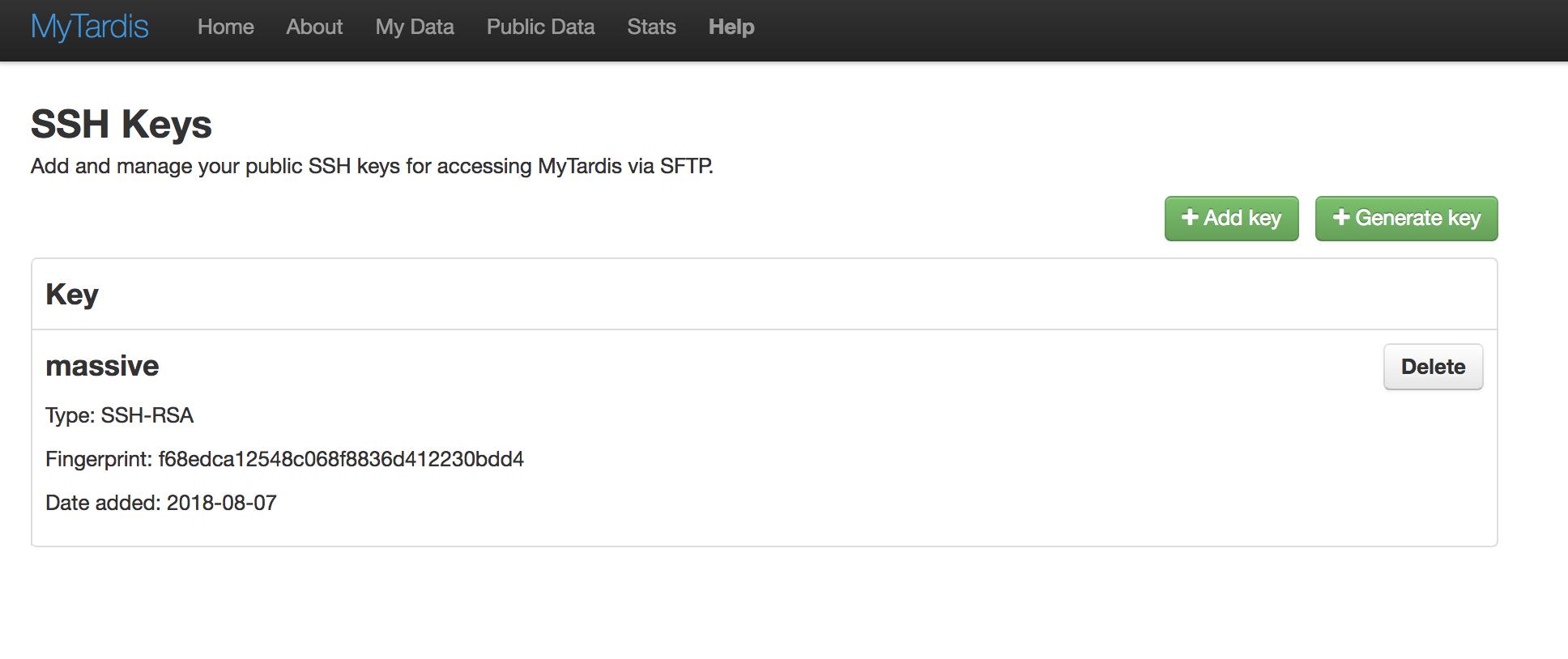
Deleting previously registered public keys in MyTardis
Removing a previously registered public SSH key from MyTardis is straightforward.
Navigate to the SSH key management page using the Manage SSH Keys link in the user menu.
Click the Delete button on the key you wish to remove.
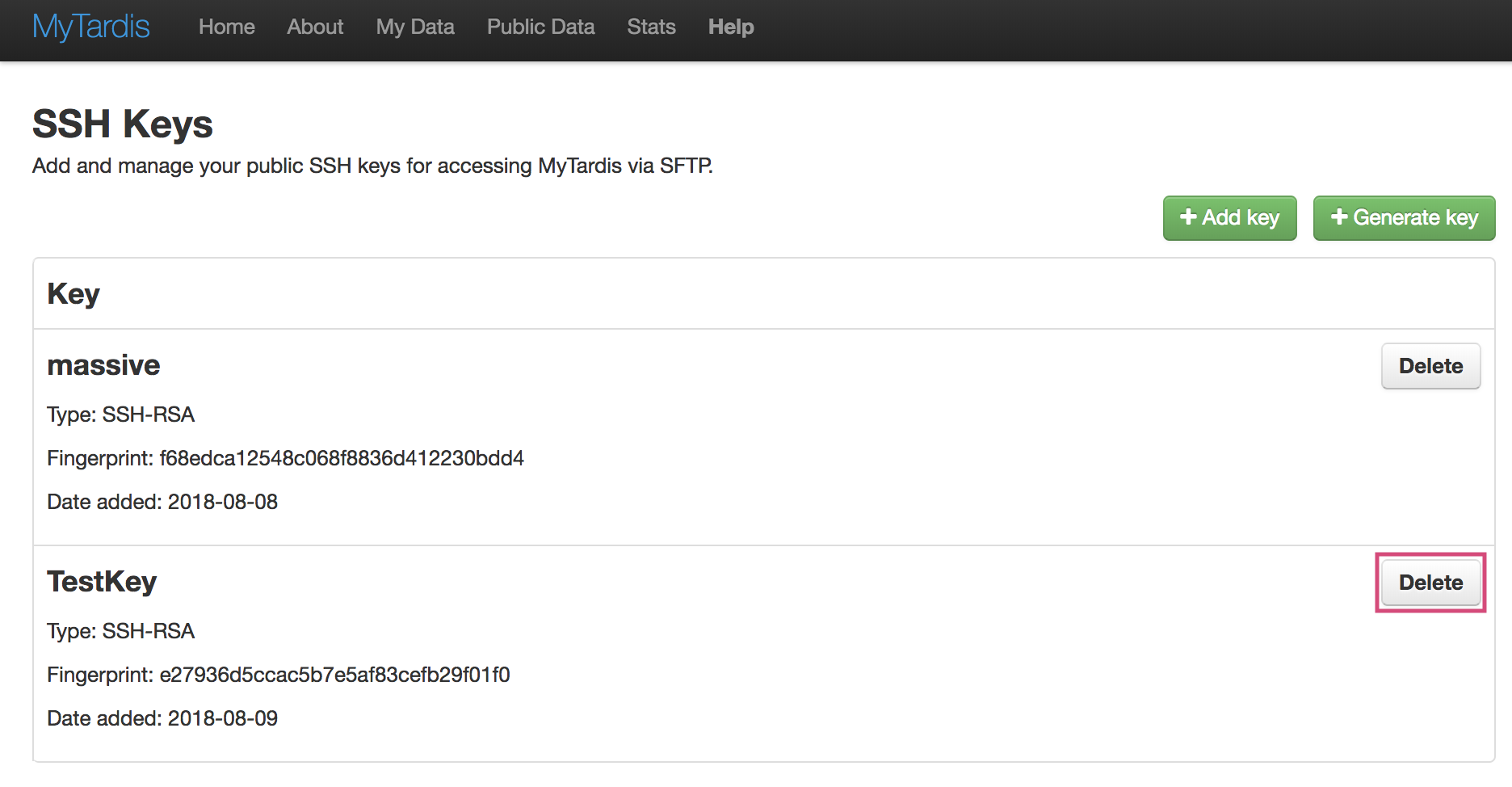
Attempting to connect to MyTardis via SFTP using the private sister key to the deleted key will no longer work.
Connecting to MyTardis via SFTP
Open your SFTP client and create a new connection with the following configuration (in FileZilla this is under File > Site Manager):
Parameter
Value
Server:
URL for your MyTardis deployment e.g. https://store.erc.monash.edu
Port:
Port on which SFTP server is running
Username:
Your MyTardis username
Password:
Leave this blank
SSH Private Key
Path to a private SSH key [1]
Note: substitute your credentials and details for your MyTardis deployment for the italicised values. If you are unsure about any of these value, please contact your system admin should be able to provide these to you.
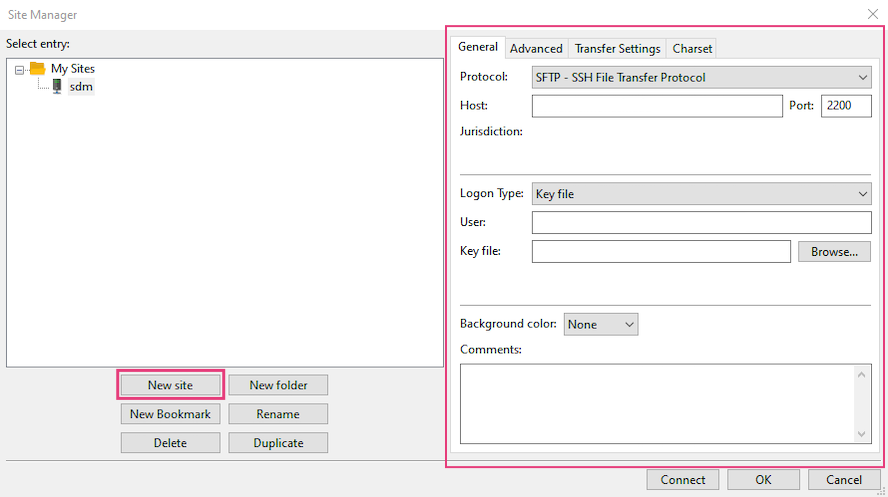
Click Connect
Upon successful connection you will be presented with a file browser showing all your data on MyTardis.
Data is organised according to the Experiment/Dataset/Data File hierarchy/structure described in the Organising Data section.
Browse and/or Download a Specific Experiment or Dataset
MyTardis also provides a convenient way to access/browse a particular Experiment or Dataset via SFTP.
Navigate to the Experiment or Dataset page that you want to access via SFTP using your web browser.
There is an SFTP button in the Download section on both the Experiment and Dataset views.
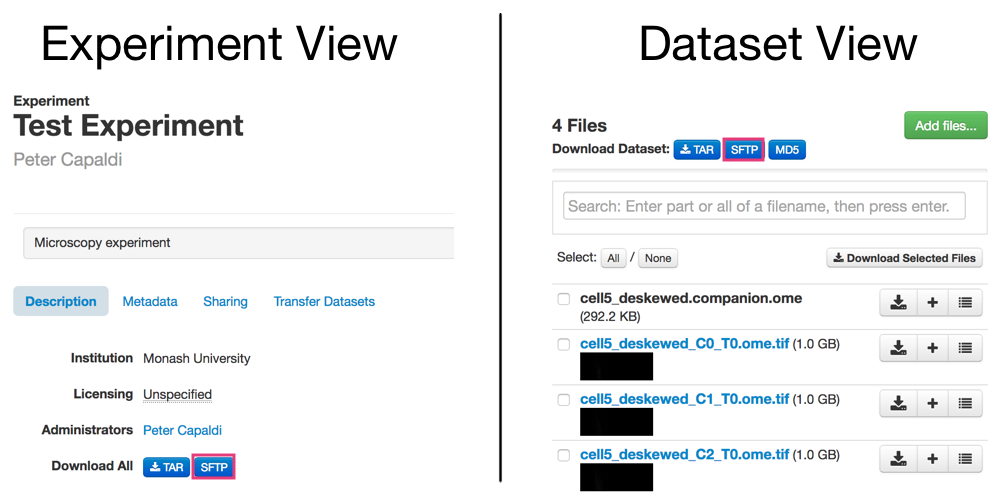
Clicking the SFTP button at either of these two locations will redirect you to a page with instructions and links for starting an SFTP session for a specific experiment or dataset.